Your vCard Pro template is a crucial element in the design of your vCards. It allows you to fully apply your graphic charter to the design of your future vCards, and to record enriched content, making your vCard an ambassador for your brand and an ally in your entrepreneurial endeavors.
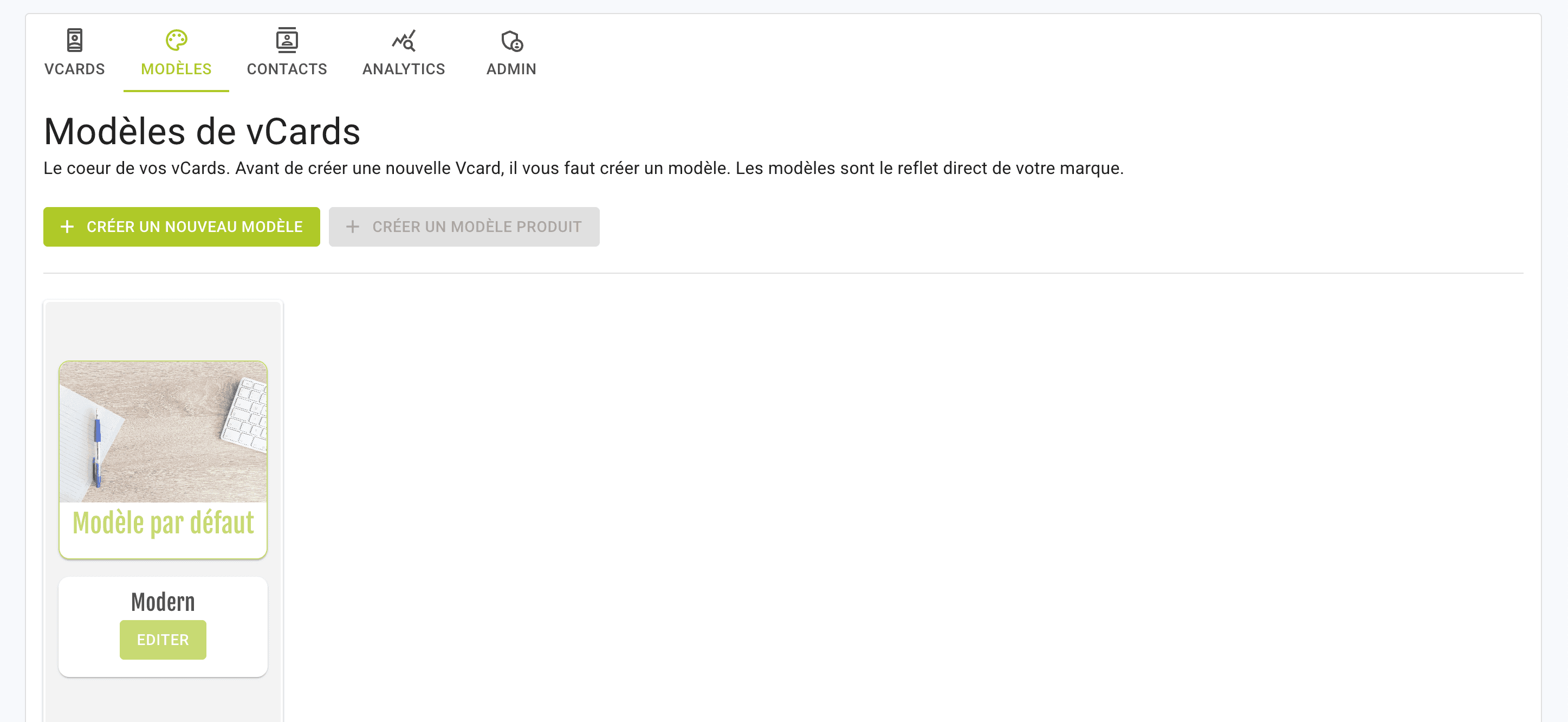
To create and customize your vCard Pro template, go to the MODELS tab and click on CREATE NEW TEMPLATE.
Once you've named your template, you'll be redirected to its customization interface.
Template base
In Template base, select the graphic base of your vCard template from the available templates and customize its composition and functions.
For model composition, you can :
Choose to display or hide the CONTACT button to allow your users to share their contact details with you (enabled by default).
Choose to show or hide the ADD ME button to allow your users to save your contact information directly in their address book (enabled by default).
Choose to display or hide the profile photo on your vCard pro (displayed by default in most template databases).
Display or float your ADD ME button to make it visible when your user browses your vCard Pro (does not appear in the preview).
Choose to display or hide the full URLs of certain rich media (visible by default).
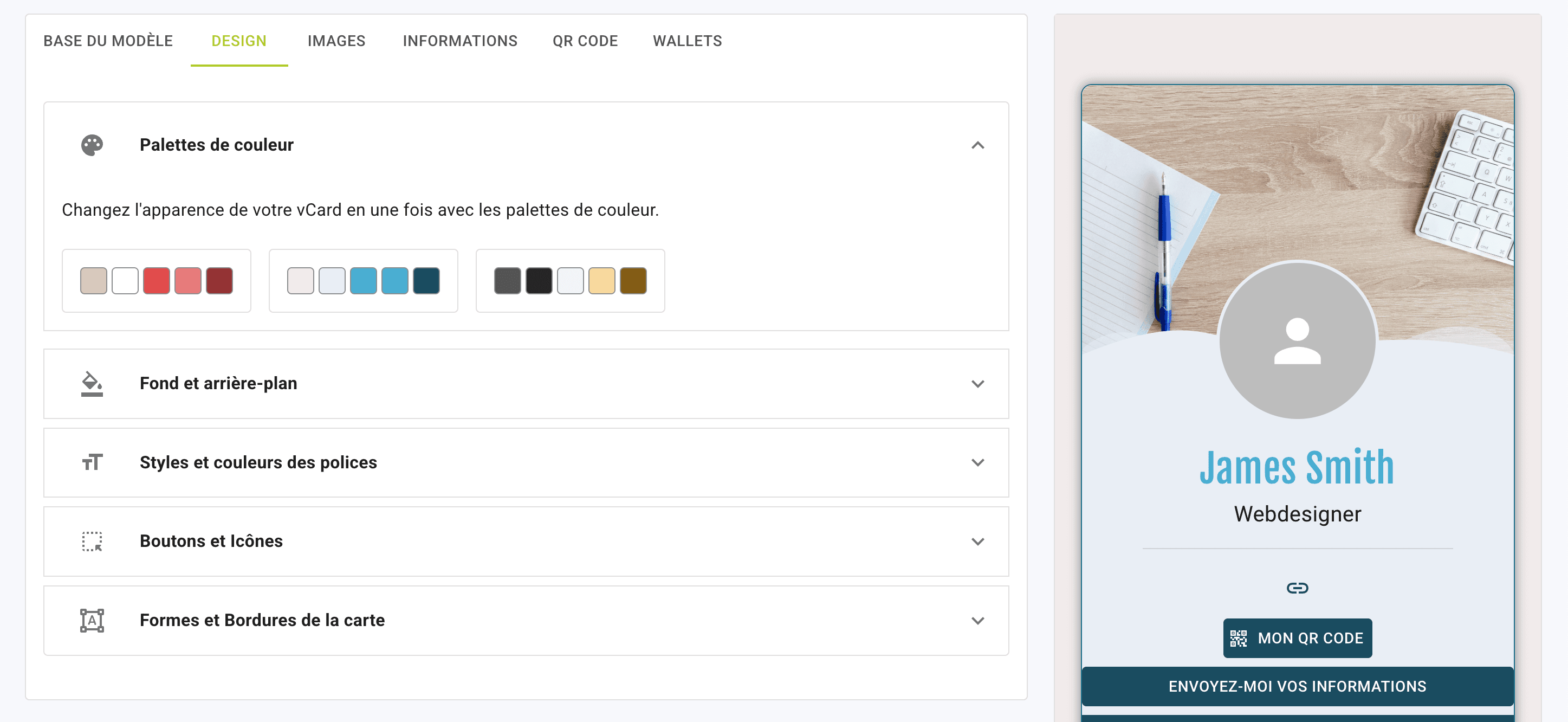
Design
In Design, fully customize your vCard Pro's colors, font, background, button preview, card shape and borders.
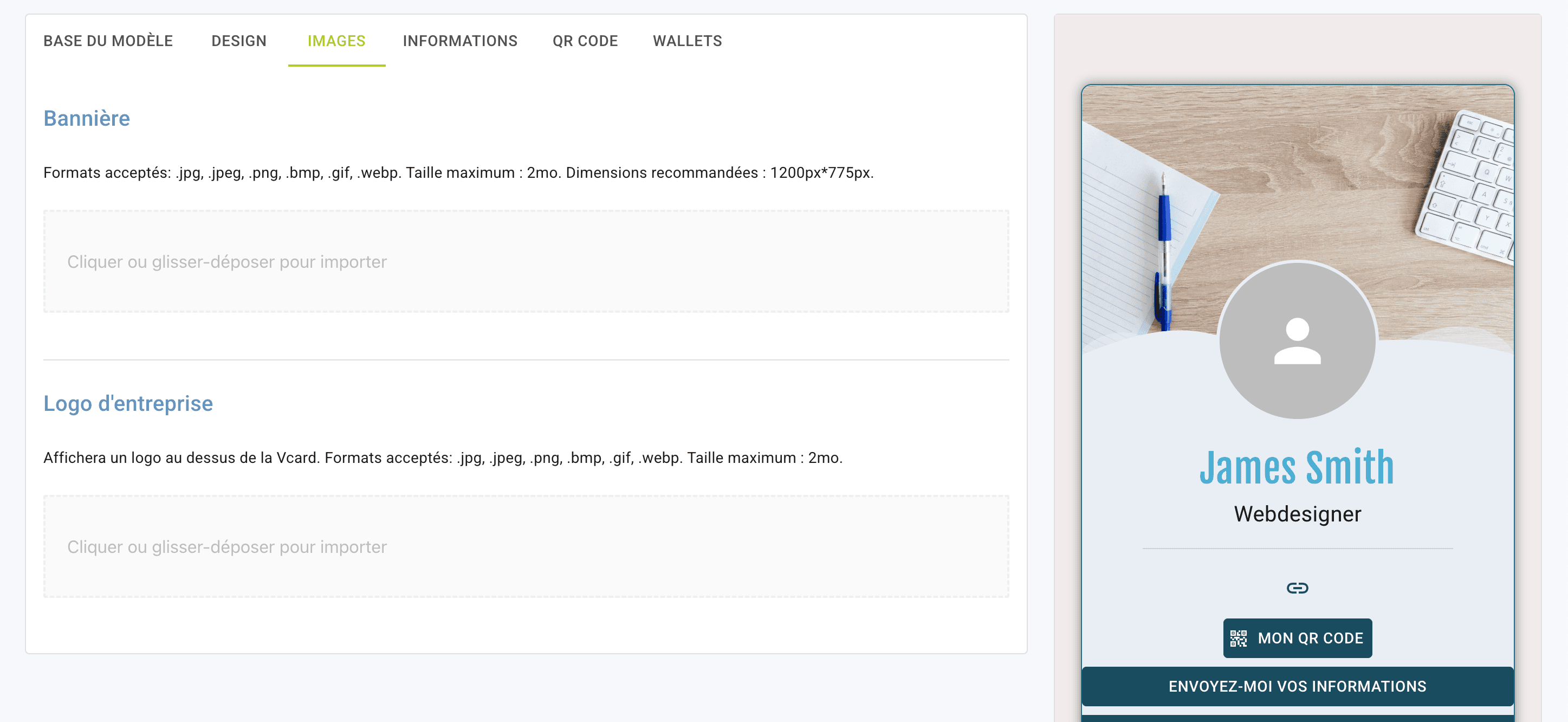
Images
In Images, add a banner and your company logo (the latter will appear above your vCard Pro).
Information
In Information, record general information about your vCard Pro. This information will appear on every vCard Pro that uses this template (in addition to the information stored in each specific vCard).
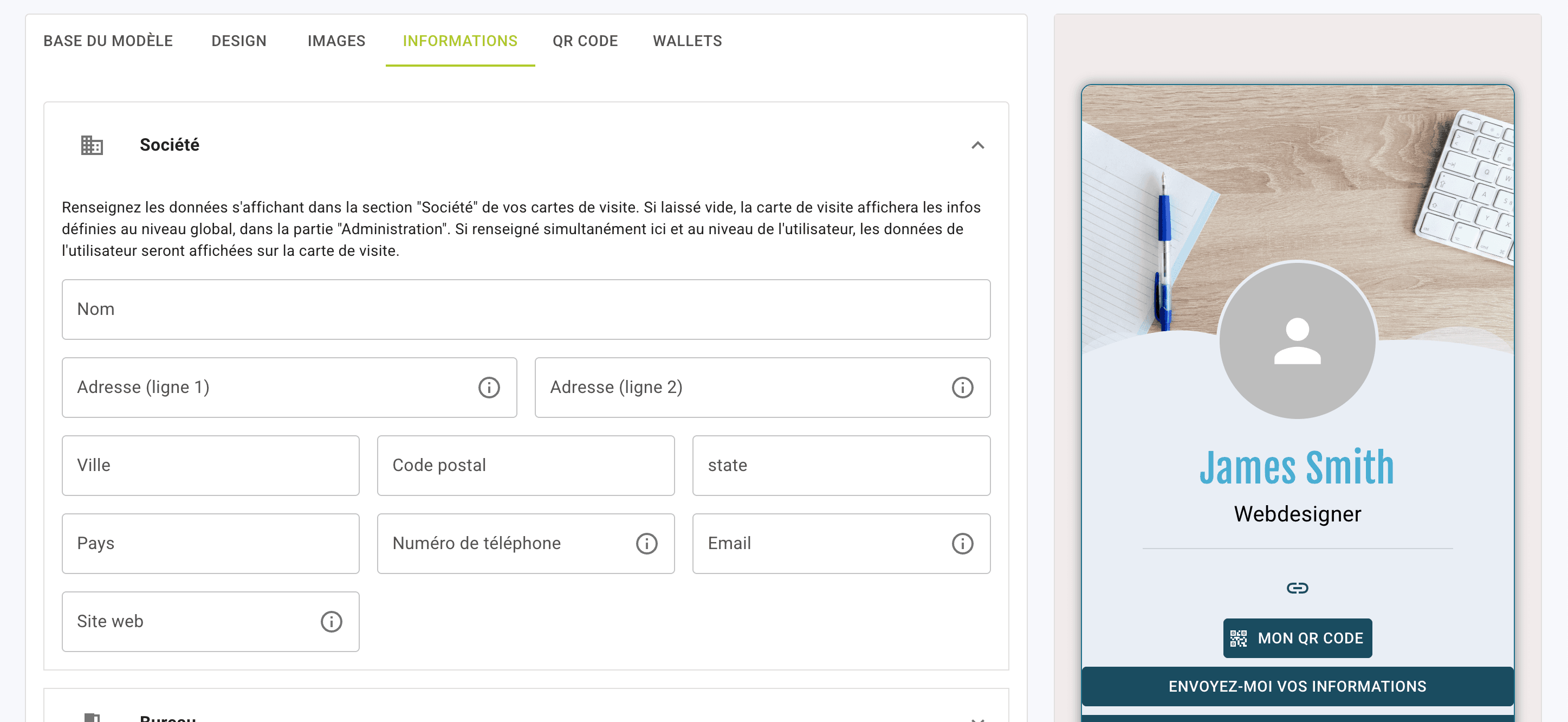
Company section: record your company's general information (head office address, switchboard number, customer service e-mail address and website).
Office section: if your company has different departments or offices, record the office address specific to your department.
Customized media section: save your various enriched content (PDF brochures, MP4 videos, various web links). Click on ADD MEDIA to open a new section.
In Name: give your document, video, etc. a title.
Media URL: if your media is a destination link, save it in the media URL bar. If your media is a PDF document or a video, click on the import box to import your content.
In Media group name: you can save a group name to group different content under the same section.
There is no limit to the quantity of enriched content you can save; however, please make sure that the files you wish to make available are not out of scope for delivery.
QR Code
In QR Code, associate both the QR Code template you wish to associate with your vCard Pro template (QR Code template) and the domain name associated with the QR Codes (Domain name option available when ordering from the GOLD subscription).
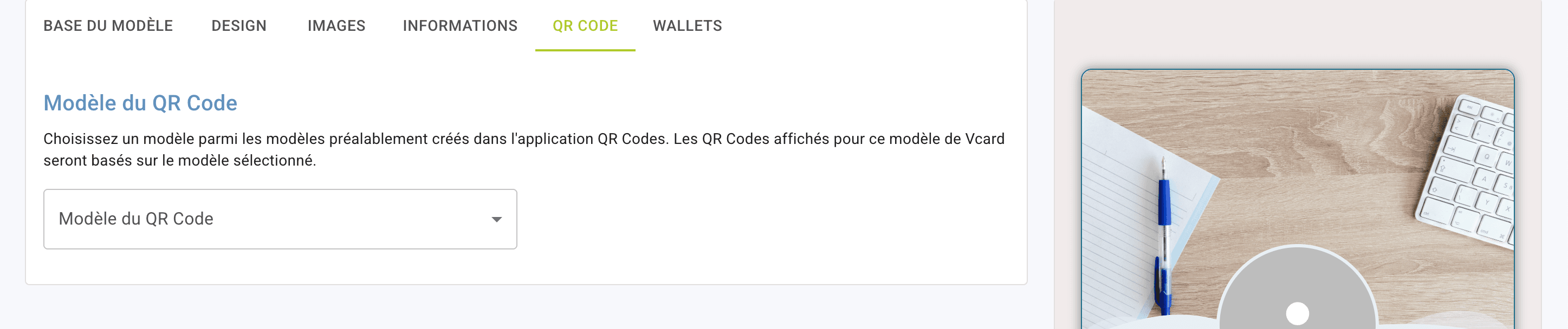
You'll be able to select your QR Code model from your QR Code Model drop-down list.
And your domain name in your Domain name drop-down list.
Wallet
Your vCard Pro can be saved in your Wallet (suitable for Google Wallet and Apple Wallet). From WALLET, change the appearance of the vCards Pro integration in Wallet applications.
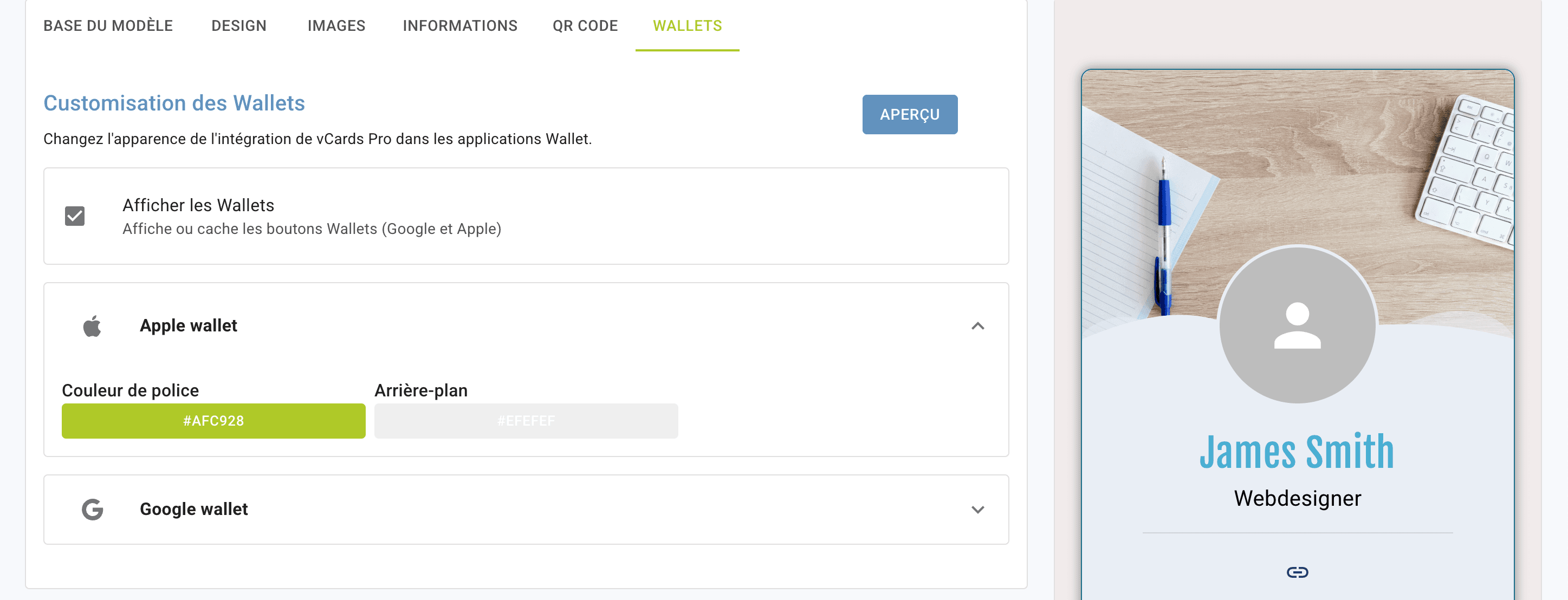
Once you have completed all the elements of your template, click on SAVE AND EXIT to validate the creation of your template.
Edit vCard Pro templates
Template base
Design
Images
Information
QR Code
Wallet