To make it easier to search, manage and navigate your QR Codes application, your QR Code application is equipped with a set of advanced settings.
Quick action
Each QR Code line is equipped with action buttons for quick actions:

To access the QR Code file.
To directly modify the QR Code design.
Download the QR Code in PNG format.
To delete the QR Code.
Search/filter QRcodes list
From the COLUMNS button, you can filter your QR Code list according to a set of parameters:
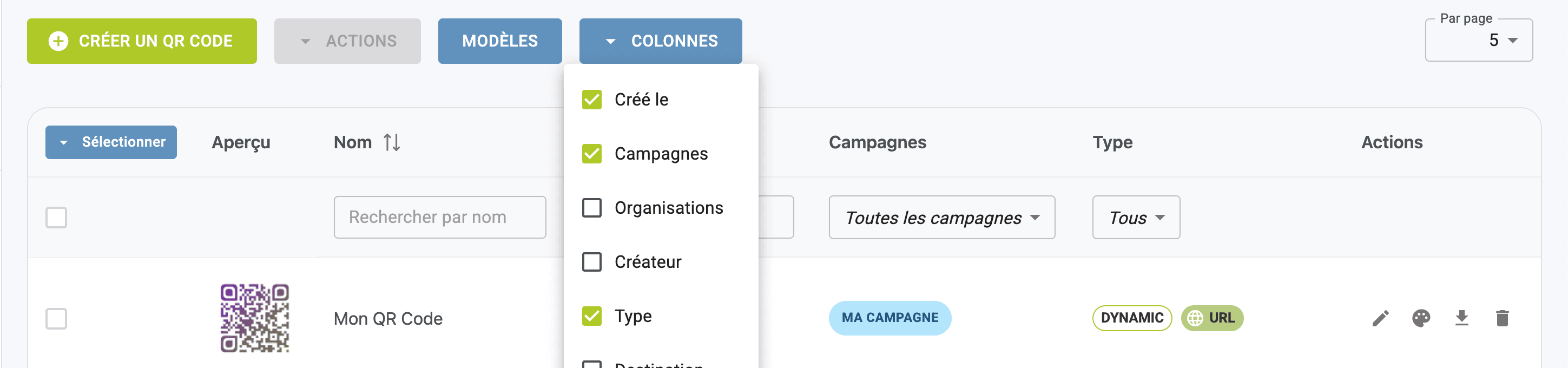
By name (displayed by default).
By creation date.
By campaign or sub-campaign.
By organization (suitable for multi-user accounts).
By creator (suitable for multi-user accounts).
By type (URL, Document, vCard classic, etc.).
By destination (by final destination link, suitable for QR Code URLs).
By short URL.
By ID BATCH.
To adapt the number of QR Codes visible on a page, you can also launch this setting via the PER PAGE button at the top right of your QR Code list.
Make a QR Code selection: the SELECT button
To help you select your QR Codes, you can use the SELECT button at the top left of your QR Code list.
Select all on page: automatically ticks the QR Codes displayed on your page.
Select all: ticks all the QR Codes in your QR Code list.
Deselect all: unchecks all checked QR Codes.
Your selections will facilitate the launch of advanced actions via the ACTIONS button. Actions per line, on the other hand, will remain specific to the QR Code concerned.
Launch advanced actions: the ACTIONS button
From the ACTIONS button, you can access a range of advanced functions:
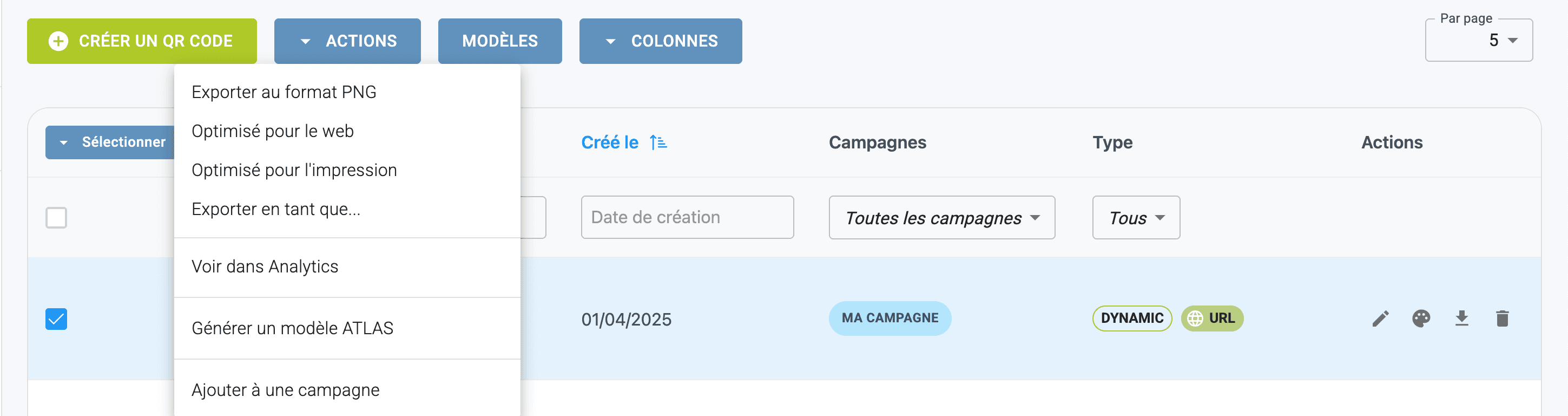
Export to PNG format: for fast downloading in PNG format.
Web-optimized: for fast, web-optimized downloads (PNG).
Print-optimized: for fast, print-optimized downloads (PNG).
Export as: for download with advanced settings for dimensions and file format.
See ANALYTICS: for statistical feedback on the QR Code selection made.
Generate ATLAS template: to download an ATLAS export for batch content modification or to export your QR Code information.
Add to a campaign: to easily assign QR Codes to a campaign.
Search, manage and filter QR Codes
Quick action
Search/filter QRcodes list
Make a QR Code selection: the SELECT button
Launch advanced actions: the ACTIONS button