Available from the GOLD subscription, redirection filters enable you to adapt the content of your QR Code to the profile of your users.
Create an intelligent, targeted communication campaign, depending on the language or type of device used.
Multiple redirection by language
Allows multiple links in different languages to be saved for a single QR Code. On scanning, the QR Code recognizes the language used by the device and redirects the user to the link adapted to his language. If the language of the user's device has not been saved as a filter, the default link will be the one saved as the destination link.
Support redirection
Saves multiple links based on the user's device type. When scanned, the QR Code recognizes the type of device used and redirects the user to the link associated with their device, such as an application store. Reach your entire audience and offer your users a personalized interactive experience.
Add redirect filters
Go to your QR Code file by clicking on the EDIT icon in the line of your QR Code.
In the FILTER box at the bottom of your QR Code form, click on NEW FILTER.

In the Filters pop-up, enter the condition you're looking for (Language or Media type) and the condition value (the chosen language or device), then click on ADD.
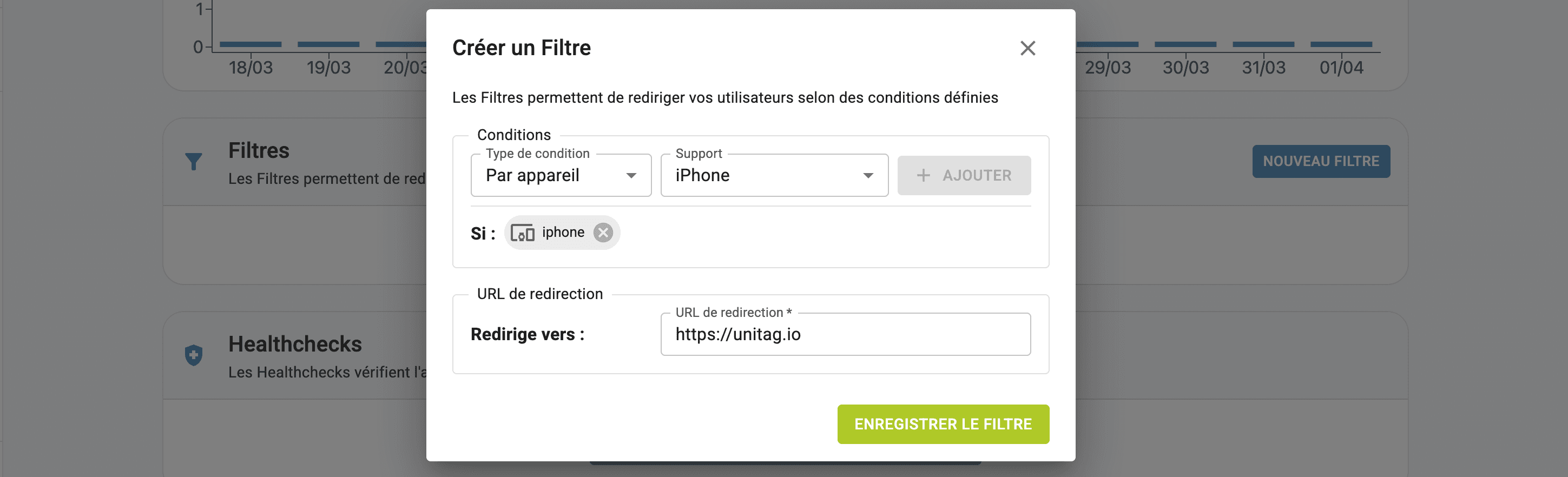
Save the link associated with this condition and click on SAVE FILTER.
All added redirection filters will appear in your FILTERS box.
Remove redirect filters
To delete a redirection filter, click on the BODY icon in the line of your filter.
Redirect filter by location
Starting with our GOLD subscription, you can add the optional location-based redirect filter, enabling you to add filters based on your user's location.
Multiple redirection filters
Add redirect filters
Remove redirect filters
Redirect filter by location