Accessible from the GOLD subscription, campaign management lets you organize your QR Codes by campaign and track their grouped performance.
Assign a QR Code to a campaign
From your QR Code file, click on MANAGE CAMPAIGNS in the left-hand menu.
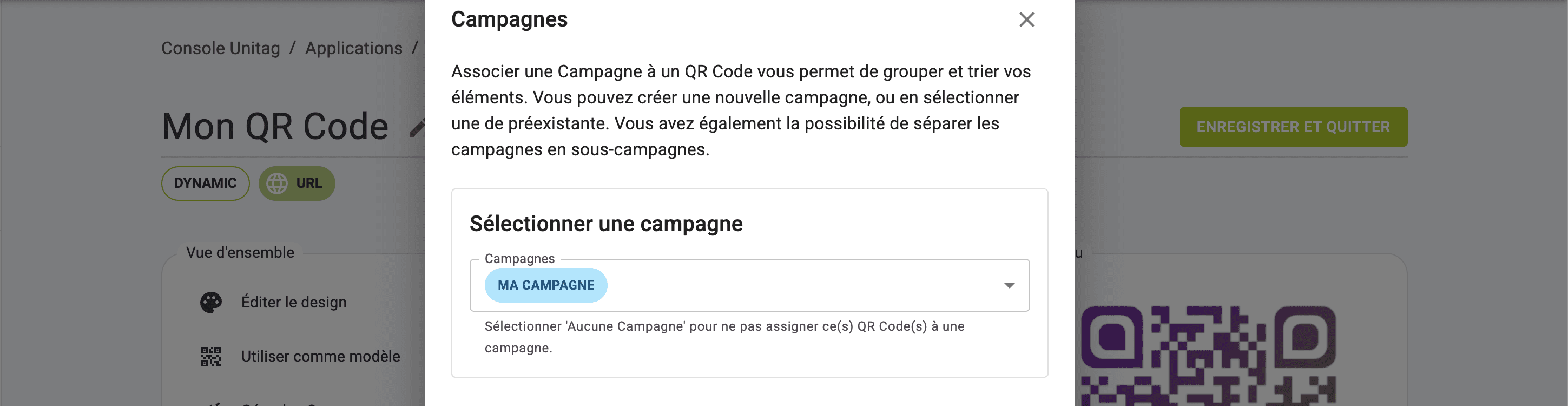
If your campaign has already been created :
Go to the drop-down list for your campaign under SELECT CAMPAIGN.
Select your campaign from the drop-down list.
Finally, click on ADD TO SELECTION.
If your campaign has not yet been created :
Record the name of your new campaign in the CAMPAIGN NAME bar under CREATE NEW CAMPAIGN.
Save the color associated with your campaign.
Finally, click on ADD TO SELECTION.
Your QR Code will be automatically associated with your campaign.
Assign a selection of QR Codes to a campaign
From your QR Code list, tick the boxes of the QR Codes you want to assign to your campaign.
Click on the ACTIONS button.
Click on ADD TO CAMPAIGN.
Go to the drop-down list for your campaign under SELECT CAMPAIGN.
Select your campaign from the drop-down list.
Finally, click on ADD TO SELECTION.
Display the QR Codes of a campaign in the QR Code list :
To facilitate the display of your QR Code list by campaign, you can filter your QR Code list by clicking on COLUMNS.
Select the CAMPAIGN filter.
Select your campaign from the CAMPAIGN drop-down list.
Only QR Codes from your campaign will be displayed in your QR Codes list.
Organize and assign QR Codes by campaign
Assign a QR Code to a campaign
Assign a selection of QR Codes to a campaign
Display the QR Codes of a campaign in the QR Code list :